Technical
Put your streaming device on 5GHz, not 2.4GHz
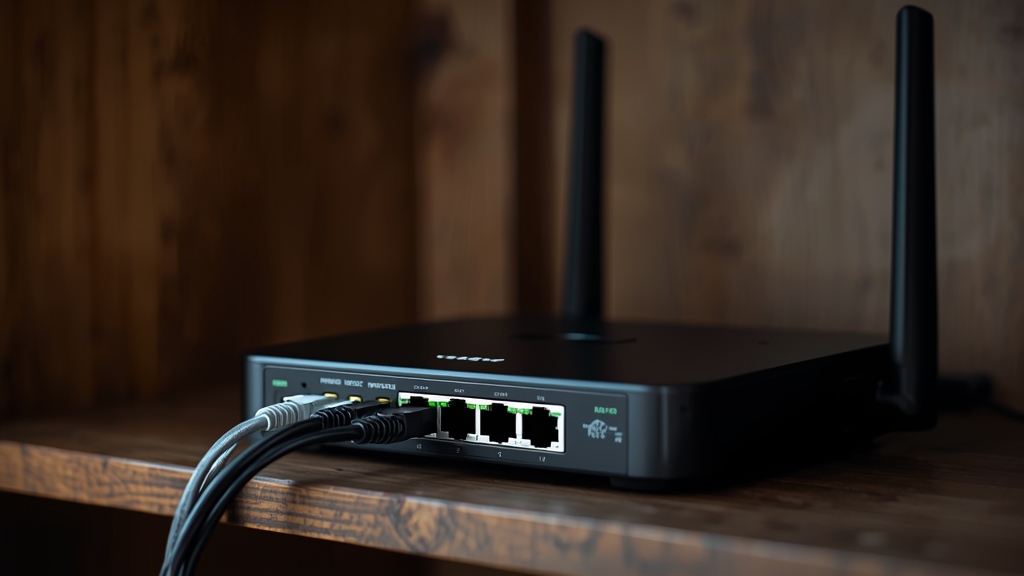
Most routers broadcast both bands, sometimes under one combined network name that auto-selects for you. The 5GHz band has less interference from neighboring networks, cordless phones, and household electronics, and it’s often the difference between a stable 4K stream and one that stutters during busy evening hours when everyone nearby is online at once. If your router combines both bands into a single network name, check its admin settings for an option to split them so you can manually assign your streaming device to 5GHz.
The tradeoff is range: 5GHz doesn’t travel through walls as well as 2.4GHz, so if your streaming device is far from the router, you may need a mesh extender or a wired run instead to get the benefit reliably.
Turn on Quality of Service (QoS) for your streaming device
QoS lets you prioritize network traffic to a specific device over everything else on the network. Most router apps have a QoS section, often under "advanced" or "traffic management" settings — assign your Fire Stick, Android box, or Smart TV a higher priority so downloads, game consoles, and video calls elsewhere in the house don’t compete with your stream for the same limited bandwidth. This one setting resolves more buffering complaints during peak hours than almost anything else on this list, because it directly addresses contention rather than raw bandwidth.
Try a different DNS provider
Your ISP’s default DNS server isn’t always the fastest to resolve domain lookups, and a slow DNS response adds delay before a channel or app even starts loading. Switching to a public DNS provider in your router settings (rather than on each individual device) can shave meaningful time off how quickly channels load and apps launch, though it won’t fix mid-stream buffering on its own since that’s a bandwidth issue, not a lookup issue.
Reduce the number of devices competing for bandwidth
If several people in the house are streaming, downloading updates, or gaming online at the same time, that shared bandwidth adds up quickly and can push your connection past what it can comfortably handle. See our guide to IPTV for multiple devices for how simultaneous connections actually work and how to plan around a busy household rather than being surprised by it.
Restart on a schedule, not just when something breaks
Routers accumulate memory bloat and connection-table clutter over weeks of continuous uptime, which gradually degrades performance in ways that are hard to notice day to day. A scheduled weekly restart — many routers support this natively under a maintenance or reboot schedule setting — keeps performance consistent instead of waiting for a visible problem to show up. If you’ve tried all of this and still see issues, our buffering troubleshooting guide covers the rest of the checklist, or contact support directly with details of what you’re seeing.
Mesh systems vs. a single router
If your home is large enough that Wi-Fi signal is weak in the room where you stream, a mesh Wi-Fi system spreads coverage more evenly than a single router trying to reach every corner of the house. This matters specifically for 5GHz coverage, which has a shorter range than 2.4GHz to begin with, so a mesh node placed closer to the TV can restore the benefits of the faster band in rooms where a single router alone can’t quite reach reliably.
Putting it into practice
None of the steps above require special technical knowledge, and working through them in order — rather than jumping straight to contacting support — resolves the majority of cases on the first pass. Keep in mind that IPTV setups vary by device, app, and household, so what fixes the issue for one person’s living room setup may take an extra step or two on another. If you’ve read this far and still have a question specific to your own setup, that’s exactly the kind of detail worth sending along when you reach out to support — the more specific the description, the faster it gets resolved. And if this topic connects to a decision you’re still weighing about your subscription itself, current Flash4KIPTV plans are worth a look alongside everything covered here.