Technical
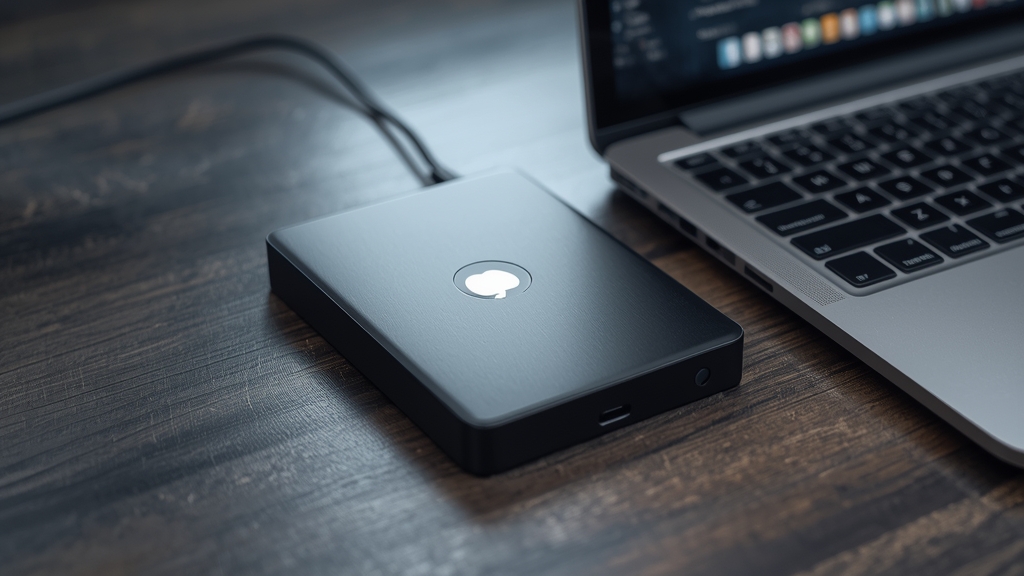
Local device storage vs. external storage
Many IPTV player apps save recordings directly to the streaming device’s internal storage by default, which can fill up surprisingly quickly on devices with limited onboard space to begin with — see our DVR guide for setup basics across the most common apps in use.
Using an external drive
Devices with a physical USB port, including many Android boxes on the market, often support recording directly to an external USB drive instead, which is well worth setting up early on if you plan to record regularly rather than just occasionally — see our device guide for which specific hardware supports this properly.
Cloud-based recording is less common with IPTV
Unlike some traditional cable DVR services that offer it by default, cloud-based recording storage isn’t a standard, widely available feature across IPTV player apps generally — confirm exactly what your specific app offers rather than simply assuming cloud storage is automatically included with your subscription.
Recording limits and management
Check your app’s settings for a dedicated recordings library where you can manage, delete, or move saved content over time, since letting recordings quietly accumulate unmanaged is by far the most common way that storage fills up unexpectedly without warning.
If catch-up TV covers your need instead
For content you just want to watch shortly after it originally aired, catch-up TV may cover that exact need without requiring any storage setup at all on your part. Contact support if you’re unsure which of these two approaches better fits your household’s actual viewing habits.
Formatting requirements for external drives
Some apps require an external drive to be formatted in a specific file system before it will accept recordings, so check your app’s documentation for supported formats before assuming any USB drive will work automatically out of the box.
Checking free space before scheduling long recordings
Before scheduling a long recording, such as a multi-hour sports event, check available free space on whatever storage you’re using — a recording that fails partway through due to full storage is a common, avoidable disappointment that a thirty-second check beforehand prevents entirely.
Backing up recordings you want to keep long-term
If a recording is something you want to keep indefinitely rather than just watch once, copying it off the streaming device or external drive to a computer or separate backup drive protects it from being lost if that device is ever reset, replaced, or the drive fails unexpectedly.
A simple habit that prevents most storage problems
Getting into the habit of deleting or moving watched recordings promptly, rather than letting them accumulate as a growing backlog, is a small ongoing habit that prevents the vast majority of storage-related recording problems before they ever become a real inconvenience.
USB drive speed matters for smooth recording
Not all USB drives perform identically — a slower drive can struggle to keep up with a high-bitrate 4K recording, leading to dropped frames or a failed recording. A drive rated for video recording, rather than the cheapest available option, is worth the modest extra cost if you plan to record regularly.
Putting it into practice
None of the steps above require special technical knowledge, and working through them in order — rather than jumping straight to contacting support — resolves the majority of cases on the first pass. Keep in mind that IPTV setups vary by device, app, and household, so what fixes the issue for one person’s living room setup may take an extra step or two on another. If you’ve read this far and still have a question specific to your own setup, that’s exactly the kind of detail worth sending along when you reach out to support — the more specific the description, the faster it gets resolved. And if this topic connects to a decision you’re still weighing about your subscription itself, current Flash4KIPTV plans are worth a look alongside everything covered here.